
Using the AIM device
Connection Types
AIM has 3 connection modes: direct WiFi connection, direct cable connection or connection through the Internet.
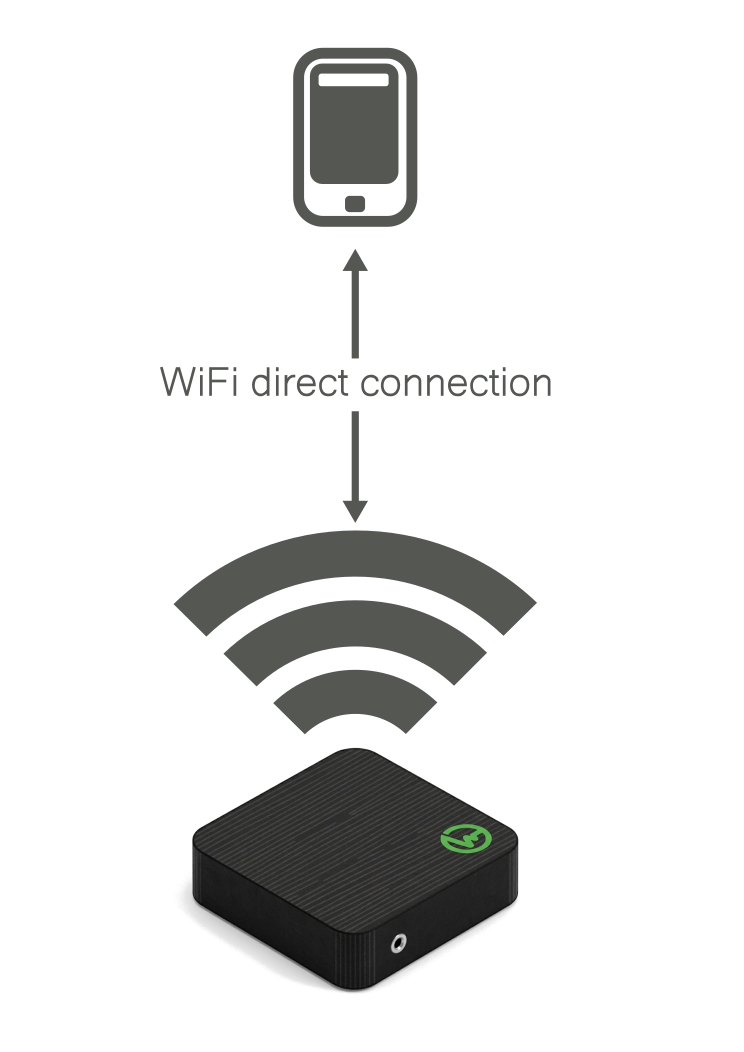
1. Direct WiFi Connection
This connection does not require Internet.
The AIM unit creates its own WiFi network and you connect directly without using any other element.
Steps to connect:
- Turn on the AIM unit.
- Look for the WiFi network called
aimXXX(whereXXXis the device serial number). - Connect to it from your phone, tablet or laptop.
- Enter the password:
berardait. - Open a web browser and type:
http://aimXXX.local.
Result: you will access AIM directly.
Important: on your phone, tablet or laptop a “No Internet” warning will most likely appear. This is normal and does not affect AIM operation.
2. Direct Cable Connection
This connection does not require Internet.
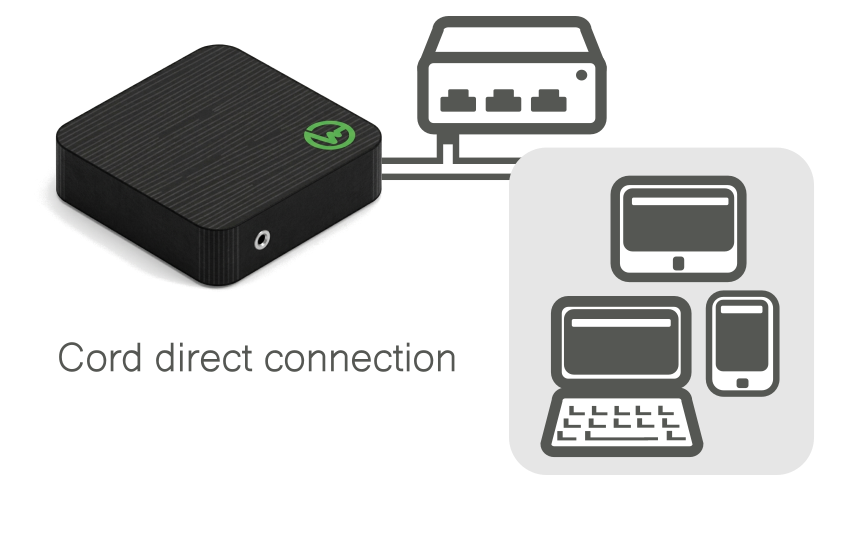
The AIM unit announces its presence on the network, and you can use it from any device connected to the same network, via WiFi or using a network cable.
Steps to connect:
- Turn on the AIM unit.
- Connect AIM to the router/switch with a network cable.
- Connect your device (phone, tablet or PC) to the same router/switch, either by WiFi or cable.
- Open a web browser and type:
http://aimXXX.local.
Result: you will access AIM directly.
Important: software installation on your PC device is required when using Microsoft Windows. Please review the note Direct cable connection, required software.
3. Connection through the Internet
This connection does require Internet.
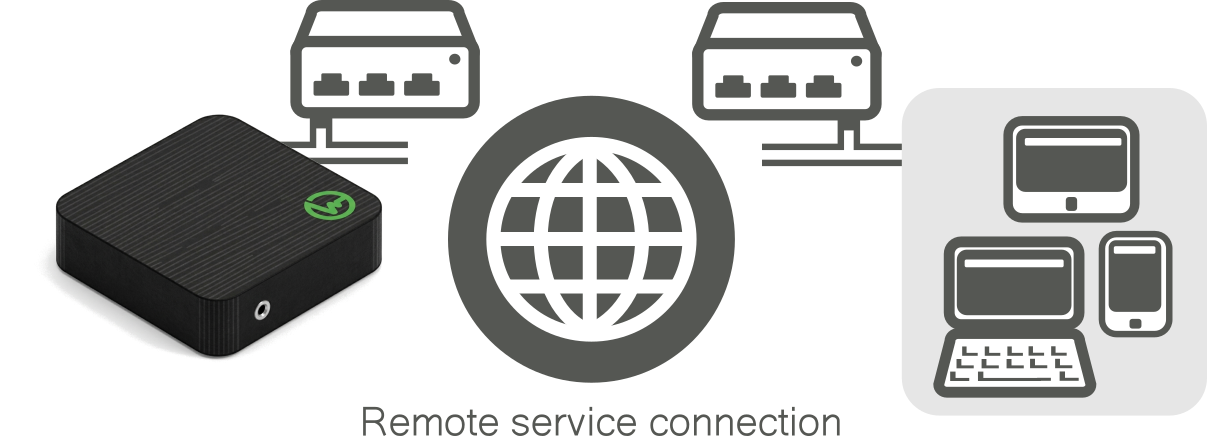
If you have contracted and activated the remote service, AIM connects to the Internet and you can operate it remotely.
Steps to connect:
- Turn on the AIM unit.
- Connect AIM to the router/switch with a network cable. The AIM unit is ready to use.
- Connect your device to the Internet and access the AMP management platform: https://amp.aim-device.com/
- Locate your AIM and click on Remote access?.
- Click on Connect remote and access AIM.
Result: you will access AIM through the Internet.
Important: this is the only mode that uses Internet, but it requires an active subscription and Internet connection.
Quick Summary
| Connection Mode | Internet required? | Required materials | “No Internet” warnings |
|---|---|---|---|
| Direct WiFi connection | No | AIM + phone/tablet/laptop | Probably yes |
| Direct cable connection | No | AIM + network cable, Router/switch + phone/tablet/PC | Probably no |
| Internet connection | Yes | AIM + network cable, Routers + Internet, phone/tablet/PC | No |
NOTE - Direct cable connection, required software
To access addresses like:
http://aimXXX.local
from PCs with Microsoft Windows operating system, the installation of Apple’s Bonjour software is required, available from here: